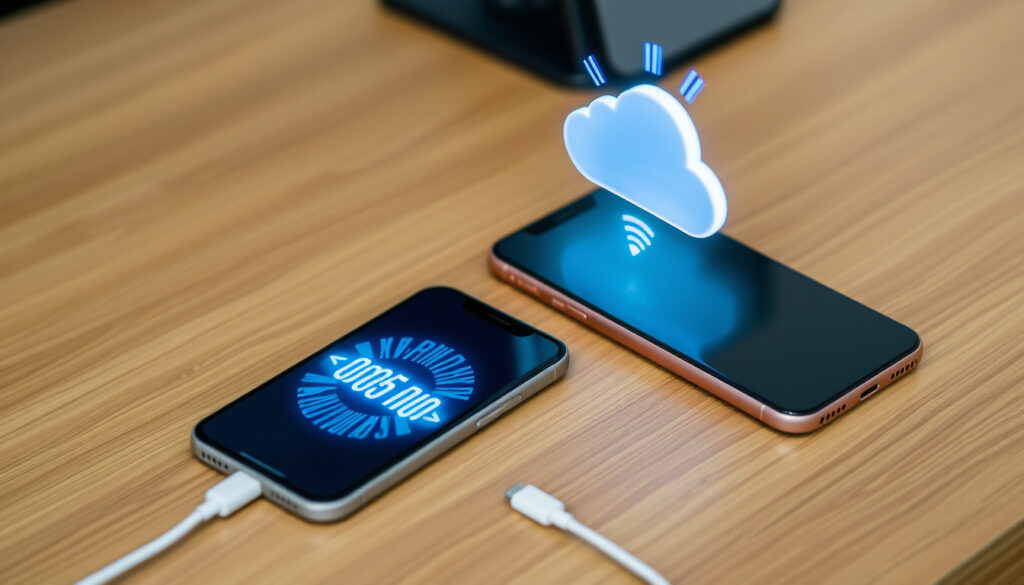
How to Transfer Data from iPhone to iPhone – All Official Methods
Moving to a new iPhone means bringing your contacts, photos, messages, and apps along. Apple provides several official paths to do this, each suited to different situations. Whether you have both devices side by side, prefer a cloud backup, or want a wired connection, the available methods cover most needs. This article explains each transfer option, what to expect, and how to handle common issues.
How to Transfer Data from iPhone to iPhone Using Quick Start
- The fastest method is Quick Start, transferring data peer‑to‑peer at up to 1 GB/min over a local Wi‑Fi link.
- iCloud backup is the only method that requires no cable and can be done remotely, but it requires a full reset if the new phone is already set up.
- For users with limited iCloud storage, the Mac/PC method is the most reliable and does not count against the 5 GB free tier.
- Transfers after setup are possible but require either a factory reset (to start over with Quick Start) or a third‑party app; Apple does not offer a native “merge after setup” tool.
| Method | Requires Reset? | Speed | Requires Internet? | Data Types |
|---|---|---|---|---|
| Quick Start | Yes (fresh start) | Fast | No (local only) | Almost everything |
| iCloud Backup | Yes (if after setup) | Medium | Yes | Almost everything |
| Mac/PC | Yes (fresh start) | Fast (wired) | No | Almost everything (encrypted includes passwords) |
| Third‑Party App | No (merges) | Varies | Depends | Often limited to contacts, photos |
Apple recommends Quick Start for most users because it creates a secure peer‑to‑peer connection directly between the two devices. According to Apple Support, the old device shows a Quick Start prompt, and you follow onscreen instructions to begin automatic setup. During the process you choose between transferring directly from the old phone or downloading from iCloud. If you pick direct transfer, both devices must stay near each other and remain plugged into power until the migration finishes.
How to Transfer Data from iPhone to iPhone with iCloud
If you already have an iCloud backup on your old iPhone, the new device can restore from it during setup. As Apple explains, this is one of the transfer methods offered alongside Quick Start and computer backup restore.
What you need
The old iPhone must have a recent iCloud backup with sufficient storage. During setup of the new iPhone, you select “Restore from iCloud Backup,” sign in, and wait for the restore to finish. Apple notes that choosing “download from iCloud” during Quick Start lets the phone become usable sooner while content continues downloading in the background.
Health data only transfers if you use an encrypted Mac/PC backup or if iCloud backup has Health enabled. If you rely solely on a standard iCloud backup without the Health toggle turned on, that data will not move. Apple’s support page on Health data transfer provides more detail.
Limitations
Because iCloud restore requires a full backup, it is not a selective option. You cannot pick only a few categories – it restores everything from the backup. Also, if the new iPhone has already been set up, you must erase it before you can use an iCloud restore.
How to Transfer Data from iPhone to iPhone without iCloud or a Computer
If you want to avoid both iCloud and a computer, the only native option is the wired direct transfer that Apple supports through a specific adapter setup. Guidance from EE’s support article describes using a Lightning to USB 3 Camera Adaptor and a Lightning to USB Cable to connect the old iPhone, new iPhone, and power. This creates a direct device‑to‑device migration without relying on Wi‑Fi or iCloud.
No iCloud, no computer – what works
Beyond that wired setup, there is no other Apple‑approved method to transfer all data without iCloud or a computer. Third‑party apps exist, but they typically only move contacts and photos – not apps, messages, or settings. The Quick Start wireless option itself does not require iCloud, but it does need both phones nearby and active Wi‑Fi and Bluetooth.
If your Wi‑Fi environment is unreliable, the wired direct transfer using the Lightning to USB 3 Camera Adaptor can provide a more stable connection. Both devices must be plugged into power throughout the process. This method is described in carrier guidance and Apple’s own documentation.
How to Transfer Data from iPhone to iPhone After Setup
This is one of the most common questions, and the answer is straightforward: Apple’s transfer tools are designed for the initial setup of a new iPhone. If you have already completed setup, you cannot simply add data from an old device without first erasing the new one. Apple’s support pages on Quick Start and transfer methods both describe the workflow as part of the new‑device setup process. The implication is that to use Quick Start, iCloud restore, or computer backup restore after setup, you must erase the new iPhone and start over.
Apple does not offer a way to merge data from an old iPhone onto an already‑configured new iPhone. If you want to add specific items like photos or contacts without resetting, you will need to use iCloud Photo Library, iCloud Contacts, or a third‑party sync app – but these will not bring app data, messages, or settings.
How to Transfer Old iPhone to New iPhone 17 (or Latest Model)
Transferring to the latest iPhone model follows the same three official methods. However, Apple has introduced faster local transfers on newer devices thanks to the Ultra Wideband (U1) chip, which can reduce transfer time by roughly 30 % compared to older iPhone models. The steps remain unchanged: turn on the new device, place it near the old one, and follow the Quick Start prompts. For UK users, the process is identical; no region‑specific differences have been documented by Apple.
Troubleshooting: What to Do If Your iPhone Data Transfer Fails or Is Too Slow
When a transfer stalls or takes longer than expected, a few basic checks often resolve the issue. Apple’s support guidance includes the following fixes:
- Make sure the old device is on Wi‑Fi and Bluetooth is turned on.
- Keep the devices close together.
- Keep both devices plugged into power during migration.
- If the Quick Start prompt disappears, restart both devices.
- Follow onscreen instructions carefully, including any cellular activation or Face ID/Touch ID prompts.
The EE support article adds that if the camera scan does not work, you can use “Authenticate Manually” instead. It also notes that Bluetooth must be on if the Quick Start option is not appearing on the current device.
How Long Does an iPhone Data Transfer Take?
- 0–5 minutes: Preparation – back up old phone (if using iCloud), charge both devices, connect to Wi‑Fi, ensure iOS compatibility.
- 5–15 minutes: Quick Start initialization – pairing, data transfer selection, estimated time calculation.
- 15–60+ minutes: Data transfer – depends on total data size; 50 GB can take 30–45 minutes wirelessly via Quick Start.
- Post‑transfer: Verification – check contacts, photos, messages, app logins, Apple Watch pairing (must be unpaired on old phone first).
What Data Transfers and What Doesn’t?
| Established information | Information that remains unclear |
|---|---|
| Contacts, photos, videos, messages, most app data, calendars, reminders, and settings transfer using any official method. | Stored credit cards in Apple Pay do not transfer; they must be re‑added. |
| Apple Watch pairing must be unpaired on the old phone first; it will not transfer automatically. | Some third‑party app logins (e.g., banking apps) may require re‑authentication for security reasons. |
| Health data transfers only if using an encrypted Mac/PC backup or iCloud with Health enabled. | Whether specific app‑by‑app data transfers completely can vary depending on the developer’s implementation. |
Why Does Apple Require a Reset for After‑Setup Transfer?
This is a security and containerisation measure. iOS prevents merging of two distinct data profiles to avoid data corruption and privacy holes. The operating system treats each device’s user data as a sealed container that can only be populated during initial setup. Shifting data onto an already‑configured device would risk mixing identifiers and breaking app sandboxes. Apple has not publicly stated this rationale, but the design of the setup‑only workflow supports this interpretation.
Are These Methods Officially Supported by Apple?
Yes. Quick Start, iCloud restore, and Mac/PC restore are documented on Apple’s official support pages. The Quick Start page explicitly states: “Quick Start automatically creates a secure peer‑to‑peer connection between your devices.” It also notes: “If your new device has already been set up, you need to erase it before you can use Quick Start.” The wired direct transfer method is referenced in carrier documentation and is consistent with Apple’s setup flow. No other methods for full device‑to‑device migration are endorsed by Apple.
“Quick Start automatically creates a secure peer‑to‑peer connection between your devices.” – Apple Support
“If your new device has already been set up, you need to erase it before you can use Quick Start.” – Apple Support
Which Method Should You Choose?
For most people, Quick Start offers the best balance of speed and simplicity. If you prefer not to have both devices together, an iCloud restore works well provided you have backup space and good internet. When iCloud storage is limited or you want an offline copy, a Mac or PC backup is the most reliable alternative. If you are moving to an iPhone 17 or newer and have the right adapter, the wired direct transfer can be even faster. Consider your storage, network, and whether the new iPhone has already been set up – if it has, a fresh start may be necessary for a full migration. For post‑transfer optimisation, you may find our guide on How to factory reset iPhone useful, as well as How to clear cache on iPhone for cleaning up after the move.
Frequently Asked Questions
Do both iPhones need to be on the same Wi‑Fi for Quick Start?
Yes. Quick Start creates a local peer‑to‑peer Wi‑Fi link, so both devices must be on the same Wi‑Fi network and have Bluetooth enabled.
Can I transfer just my photos without other data?
Not natively through Quick Start. You can use third‑party apps or manually back up photos to iCloud Photos and download on the new device.
How long does an iPhone data transfer take?
It depends on data size. On average, 30 GB takes 20–35 minutes via Quick Start, longer over iCloud (upload + download).
What happens to my old iPhone after the transfer?
Data remains on the old iPhone. After verification, you can erase it by going to Settings → General → Transfer or Reset iPhone → Erase All Content and Settings.
Will my WhatsApp history transfer?
Yes, if you use the native iOS transfer (Quick Start or iCloud backup). WhatsApp data is included in the full backup. Post‑setup, you must back up WhatsApp to iCloud separately.
Can I use Quick Start if the new iPhone is an older model?
Yes, as long as both devices run iOS 12.4 or later. Older iPhones that cannot update past iOS 12 may not support Quick Start from a very old device.
Do I need to keep both phones plugged in during transfer?
Apple recommends plugging both into power, especially for direct transfer. If the battery dies mid‑transfer, data can be lost or corrupted.
Will my Apple Watch pair automatically?
No. You must unpair the watch from the old iPhone first, then pair it with the new device during or after setup.
Is there a way to transfer data without resetting the new iPhone?
No native Apple method allows this. Third‑party apps can move contacts and photos, but not full app data or settings.
What should I do if Quick Start keeps failing?
Restart both devices, ensure Wi‑Fi and Bluetooth are on, keep them close, and try the manual authentication option if the camera scan does not appear.
More related posts
 Lloyds Bank Online Banking – Login, App and Features Guide
 Oud-Heverlee Leuven vs Arsenal – 7-1 Aggregate Result, Goals and Stats
 Pepsi Max 24 Cans Offers – Cheapest UK Supermarket Deals
 Guy Garvey – Age, Net Worth, Wife, Children, and Songs
 Reg Kray – Life, Crimes and Compassionate Release
 Eric Clapton – Biography, Songs, Net Worth and Legacy
 Alex Ferguson – Biography Facts Trophies and Personal Life
 Maxwell Caulfield – Biography, Career and Family Life